
Part 2: The Remote Work Reality – Securing the Unsecured Perimeter
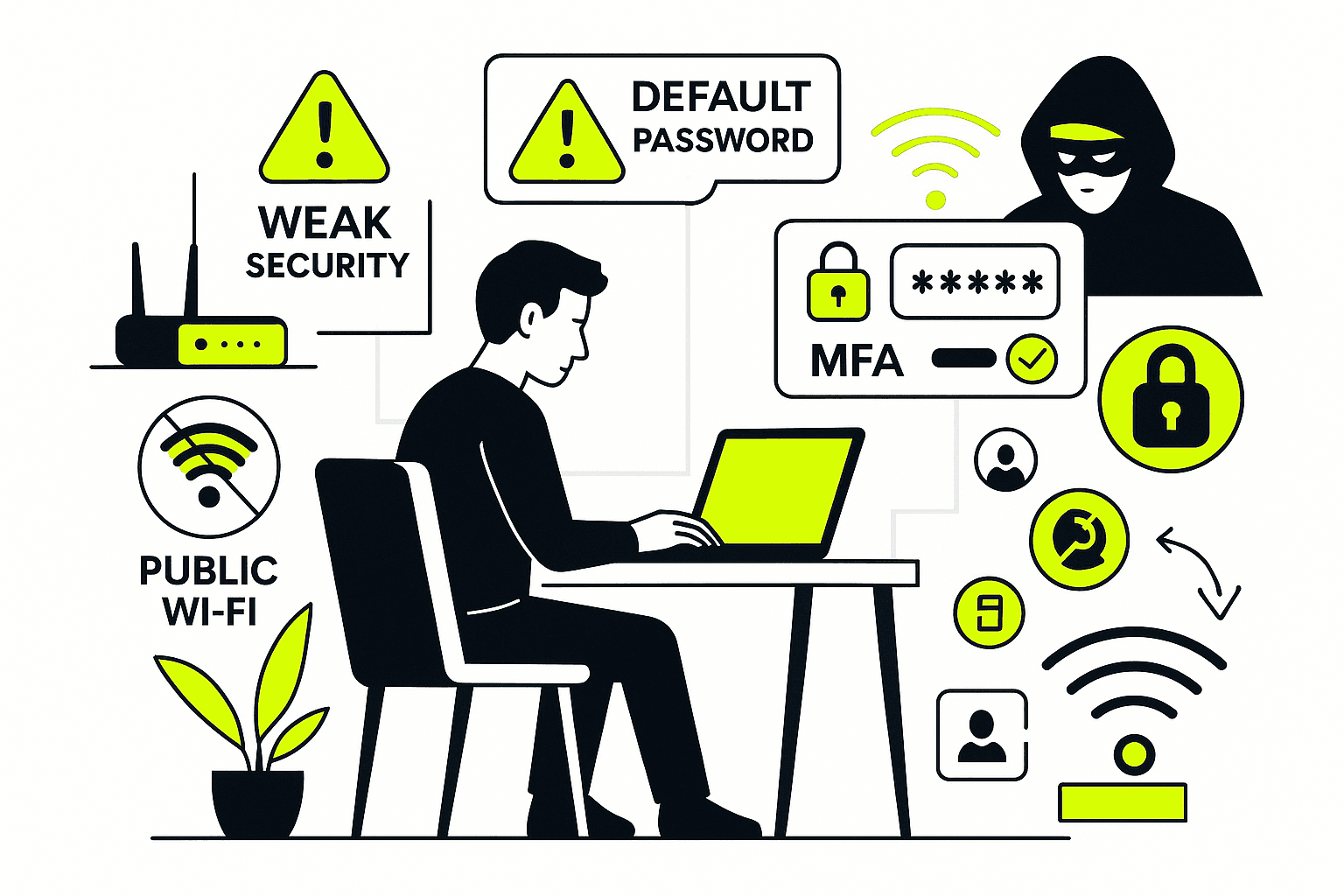
Three months after the phishing incident from Part 1, our organization shifted the staff to remote work. Within two weeks, we detected our first compromised home network.
The transition exposed something I’d suspected but hadn’t proven: most people’s home networks have less security than a coffee shop’s public Wi-Fi. And now these networks were the gateway to our entire infrastructure.
The Wake-Up Call From IT Support
The call came in on a Wednesday afternoon. A remote worker, setting up her home office, wanted to “do things right.” She contacted IT support before starting work something almost nobody does.
The conversation revealed exactly what I feared:
User: “I want to make sure I’ve set up my home office correctly.”
IT Support: “Did you change the admin password on your Wi-Fi router?”
User: “Oh… I didn’t know I needed to.”
That’s when we realized we had a systemic problem. People were connecting corporate devices to networks secured with default passwords, unchanged since installation.
The Default Password Problem Nobody Talks About
Here’s something that should terrify you: every Wi-Fi router from the same manufacturer ships with the identical admin password.
NetGear? The default admin password is “password.” You can Google it in five seconds. TP-Link? Same story.
Why does this matter? Because the admin password gives complete control over your router network configuration, connected devices, security settings, everything.
And because you can literally Google “default router passwords” and find comprehensive lists organized by manufacturer.
When I explain this to people, they always ask: “Why would someone target my home network?”
Why Your Home Network is Worth Hacking
Attackers aren’t targeting you personally. They’re targeting the corporate access you represent.
Here’s the attack chain I’ve observed:
- Attacker identifies manufacturer of your router (often visible in network name)
- Gains admin access using default credentials
- Monitors network traffic to identify corporate connections
- Deploys man-in-the-middle attacks to capture credentials
- Uses your corporate access to move laterally through the organization
Your home network isn’t the target it’s the entry point.
I’ve investigated cases where attackers spent weeks inside compromised home routers, passively collecting data, waiting for the highest-value target to log in. When a finance manager connects to process payroll, that’s when they strike.
Locking Down Your Home Network: The Real Steps
After that Wednesday call, we developed a standardized home security protocol. Here’s what actually works:
Change the Admin Password Immediately Not next week. Not when you “get around to it.” The day your router is installed.
And never use “password,” “admin,” or the router’s model number. I’ve seen all of these can be easily compromised networks.
Rename Your Network to Hide the Manufacturer Don’t name your network “MyNetGear” or “Linksys-Home.” You’re advertising your router manufacturer to everyone in range.
Use something generic and non-identifying: “HomeNetwork” or “WiFi-2024.” Boring is secure.
Create a Strong Access Password The password people use to connect to your Wi-Fi should be unique, complex, and unrelated to any other password you use.
Not your spouse’s name with “123” at the end. Not your address. Not “Welcome2023.”
I recommend 16+ characters mixing uppercase, lowercase, numbers, and symbols. Yes, it’s annoying to type once. But you only type it once per device.
Update Router Firmware Regularly This is the step everyone skips. Router manufacturers release security patches for discovered vulnerabilities. If you never update, you’re running known-vulnerable software.
Check for updates monthly. Enable automatic updates if available. Most routers now support this.
When Personal Devices Become Corporate Risks
The second wave of incidents involved personal devices laptops, tablets, phones used for both work and personal activities.
Another support call, another revelation:
User: “I’m concerned about data safety while working on my personal laptop.”
IT Support: “Are you using the same passwords for work and personal accounts?”
User: “Yes… is that a problem?”
IT support: Yes. It’s a massive problem.
The Password Reuse Disaster
Half of all internet users reuse passwords across multiple accounts. I’ve confirmed this in breach data analysis—the same credentials appear across dozens of services.
Here’s how this becomes catastrophic:
- User creates password for personal social media account
- Uses same password for work account “because it’s easy to remember”
- Social media site gets breached (happens constantly)
- Attacker obtains credentials from breach database
- Tries those credentials across common corporate platforms
- Gains access to work systems without targeting your organization
I’ve investigated case, where the initial compromise was a password from a gaming forum breach three years prior. The user had reused that password for their corporate email. One credential, unlimited persistence.
My protocol: Unique passwords for every account. Work passwords never used personally. Personal passwords never used professionally. Zero overlap.
The Multi-Factor Authentication Layer
Passwords alone don’t work. Even unique, complex passwords can be phished, intercepted, or brute-forced given enough time.
Multi-Factor Authentication (MFA) adds a second verification layer something you have (phone, security key) in addition to something you know (password).
When MFA is enabled, an attacker needs both your password AND your physical device. Stealing credentials becomes insufficient for access.
I’ve seen MFA stop attacks even when users entered credentials into phishing sites. The attacker gets the password but can’t complete authentication without the second factor.
Critical point: Enable MFA everywhere it’s available. Work accounts, personal accounts, everything. The inconvenience of occasional verification is nothing compared to the consequence of compromise.
The Privacy Paradox of Remote Work
Working from home introduces privacy concerns that don’t exist in offices:
Background voices on calls. Family conversations, delivery notifications, everything audible during sensitive discussions.
Screen visibility. Kids doing homework, partners working nearby, visitors in your home—all potentially seeing confidential data.
Shared devices. Family members asking to “quickly check something” on your work laptop.
These aren’t hypothetical. I’ve worked incidents where confidential client information was photographed off a screen by a visiting friend. Where work credentials were saved on a shared family computer. Where sensitive calls were overheard and discussed outside the organization.
My Remote Security Checklist (What I Actually Do)
Here’s my personal setup no theory, just what works:
Physical Security:
- Work laptop never leaves my sight when traveling
- Screen positioned away from windows and common areas
- Device locked (Windows + L) every time I step away
- Confidential documents stored in locked drawer when not in use
Network Security:
- Home router admin password changed immediately
- Guest network enabled for visitors (isolated from main network)
- Router firmware updated monthly
- VPN required for all work connections
Access Control:
- Unique password for every account (managed by password manager)
- MFA enabled on everything that supports it
- Biometric authentication (fingerprint, face ID) on all devices
- No password sharing, ever, with anyone
Separation of Concerns:
- Work applications never used for personal activities
- Personal applications never used on work devices
- Work calls taken in private room with door closed
- No family members with access to work devices
The Traveling Risk Multiplier
Remote work includes travel hotels, airports, conferences, client sites. Each location introduces unique risks.
I’ll share two real incidents that demonstrate what can go wrong.
Case 1: The Lost Laptop in Delhi
Sam traveled to a field office, laptop stored in taxi trunk for “security.” Taxi left before he retrieved the laptop.
Gone. Along with every work contact, every credential, every locally stored file.
The damage wasn’t just the hardware cost. We had to:
- Immediately revoke all credentials associated with that device
- Notify stakeholders of potential data exposure
- Investigate what data was stored locally vs. cloud
- Brief leadership on possible compromise scenarios
What Sam should have done: He should report to IT support that my laptop is lost. Please take necessary action on my laptop.
Case 2: The Compromised Hotel Wi-Fi in Pune
Faran checked into hotel, connected to free Wi-Fi, attempted to access work systems. Website redirected to unrelated charity site. Phone battery drained from 100% to 5% in 20 minutes.
Clear signs of active compromise man-in-the-middle attack, likely malware installed.
He disconnected immediately and called IT support. We remotely wiped credentials, scanned for persistence mechanisms, and issued a clean device.
What Faran did right: Recognized abnormal behavior and responded immediately. The 20-minute window limited attacker dwell time.
The Public Wi-Fi Threat Model
Hotel and public Wi-Fi networks are fundamentally insecure by design:
No Accountability: Anyone can connect, no identity verification required
Shared Infrastructure: Your traffic shares the same network as every other user
Minimal Security: Patches delayed or never applied, default configurations unchanged
Public Passwords: Wi-Fi credentials posted on walls, shared freely
I’ve conducted penetration tests on hotel networks. From a standard guest connection, I could see traffic from every other connected device, capture unencrypted data, and deliver payloads to any machine on the network.
It’s not that hotels are malicious they’re just not designed with security as priority.
Traveling Security Protocol (Battle-Tested)
After investigating dozens of travel-related incidents, here’s my recommended protocol:
Before Travel:
- Update all devices with latest security patches
- Verify cloud backup of critical data
- Print physical copies of emergency contact information
- Enable “Find My Device” on all hardware
During Travel:
- Use mobile hotspot instead of public Wi-Fi when possible
- Verify exact network name before connecting (attackers create fake networks with similar names)
- Turn off Bluetooth when not actively using it
- Keep devices physically secure and in sight at all times
If You Must Use Public Wi-Fi:
- Confirm network name with staff (not signs posted publicly)
- Connect through VPN immediately
- Avoid accessing sensitive systems or data
- Disconnect immediately if anything behaves abnormally
- Contact IT support if any suspicious activity occurs
After Travel:
- Review connected devices and remove unknown entries
- Check for software updates and install immediately
- Monitor accounts for unusual activity
- Report any concerning incidents to security team
The Cultural Shift Nobody Prepared For
The hardest part of securing remote work isn’t technology it’s behavior change.
People developed security habits based on office environments: physical security desks, network perimeters, IT staff down the hall. Those environmental controls created a false sense of security.
Remote work removes all of that. You are the perimeter. Your home network is the firewall. Your awareness is the intrusion detection system.
Organizations that succeeded in remote security transitions shared one characteristic: they acknowledged this shift explicitly and trained accordingly.
Organizations that struggled assumed existing habits would transfer. They didn’t.
What Separates Secure Remote Workers From Compromised Ones
After analyzing multiple of remote work security incidents, clear patterns emerged:
Secure remote workers:
- Change default router configurations immediately
- Use unique passwords managed by password managers
- Enable MFA universally, not selectively
- Maintain physical security of devices
- Report suspicious activity immediately
- Update systems regularly without reminders
Compromised remote workers:
- Leave default configurations unchanged
- Reuse passwords across accounts
- Enable MFA only when forced
- Allow others to use work devices
- Ignore suspicious activity as “probably nothing”
- Delay updates indefinitely
The difference isn’t technical sophistication it’s consistent application of basic security practices.
The Question Everyone Asks
“Isn’t this excessive? Am I being paranoid?”
After watching organizations lose hundred to breaches that started with compromised home routers, after investigating incidents where single password reuse led to complete infrastructure compromise, after analyzing attack patterns that exploited every “minor” security gap no, it’s not excessive.
Security feels excessive until you need it. Then it feels insufficient.
What’s Next: In Part 3, I’ll cover the password and authentication failures I see constantly, and how phishing-resistant authentication is changing the security landscape. Because even if you lock down your home network perfectly, weak authentication will undermine everything.
The access controls you use today determine whether you’re secure tomorrow.
Write more, thats all I have to say. Literally, it seems
as though you relied on the video to make your point.
You definitely know what youre talking about,
why waste your intelligence on just posting videos to your blog when you could be giving us something informative to read?
Review my webpage – fintechbase