
Part 3: The Authentication Crisis – Why Passwords Are Failing Us
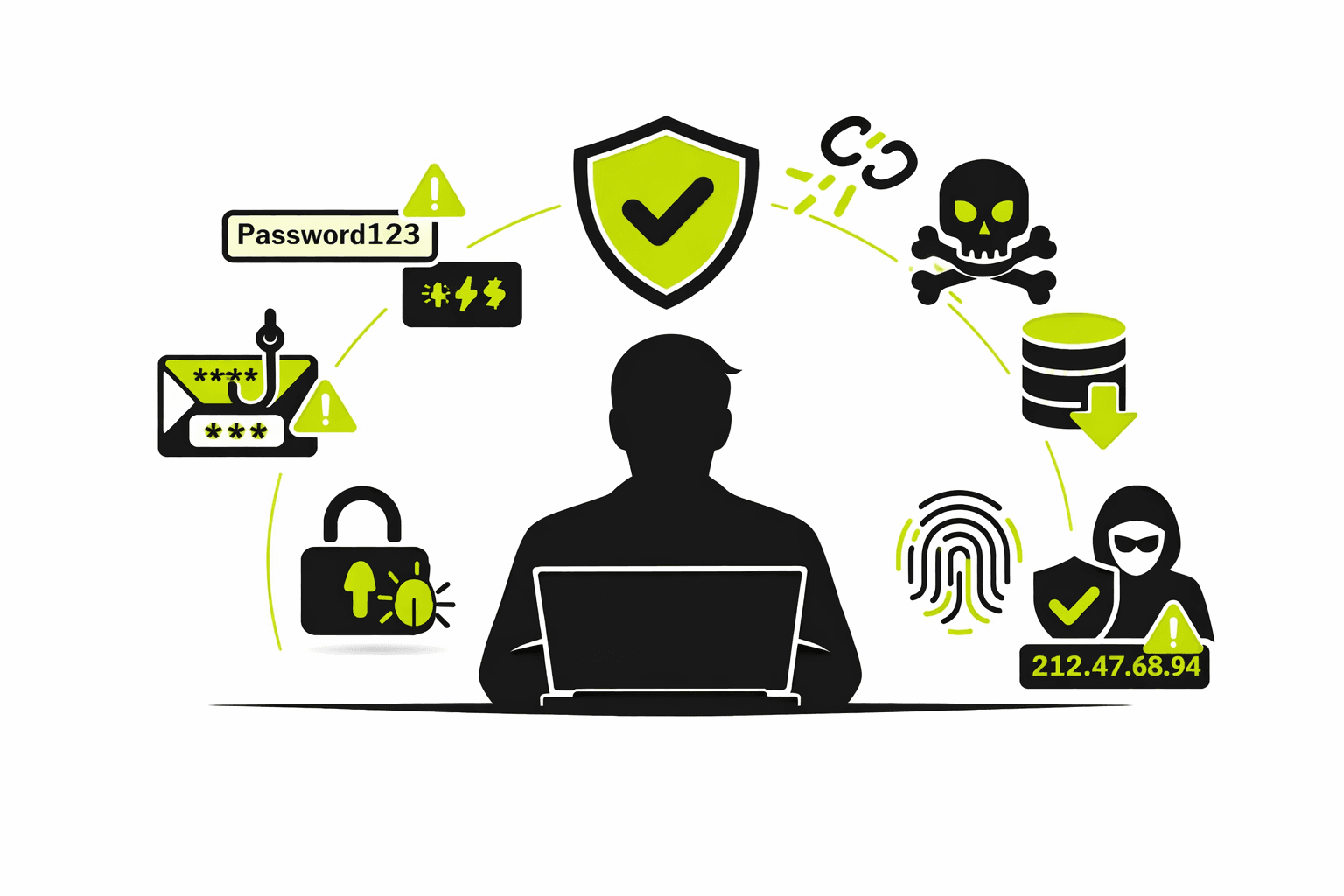
Two weeks after securing our remote infrastructure (covered in Part 2), we detected an anomaly: seventeen failed login attempts from Eastern Europe against a senior manager’s account. Someone had obtained valid credentials and was attempting authentication.
Multi-factor authentication blocked every attempt. Without that second layer, they would have succeeded.
This incident crystallized something I’d observed across hundreds of investigations: passwords alone, no matter how complex, are no longer sufficient protection.
The Reality Half of All Users Won’t Admit
During a security audit, we analyzed authentication practices across the organization. The data revealed what individual interviews wouldn’t:
54% of users reused the same password across multiple accounts—work email, personal email, banking, social media, everything.
When questioned, most claimed they used unique passwords. The login data told a different story.
Here’s why this matters: I routinely check organizational email addresses against known breach databases. Almost every query returns results—credentials exposed in historical breaches of third-party services.
If you used the same password for both the breached service and your work account, an attacker now has valid credentials. They don’t need to hack you specifically. They just need to try credentials from old breaches against common corporate platforms.
I’ve investigated breaches where the initial access vector was a password from a video game forum breach in 2019. The user had reused that password for their corporate account. One leak, unlimited exposure.
The Common Password Mistakes I See Constantly
Beyond reuse, certain patterns appear repeatedly in compromised accounts:
Sequential Characters: “ABCD1234” or “9876543210” Why this fails: Attackers use pattern recognition. Sequential patterns are among the first tested in automated attacks.
Personal Information: Children’s names, birthdates, ID numbers, addresses Why this fails: Social media provides this information freely. Your child’s name and birth year is probably in your Facebook profile.
Account Names in Passwords: “MyGmailPassword” or “WorkEmail2024” Why this fails: Once an attacker knows which account they’re targeting, they’ll try obvious derivatives of that account name.
Common Passwords: “Password123” or “Welcome2024” Why this fails: These appear in every breach database. Attackers try them first.
I analyzed 50 compromised accounts last quarter. Forty-two used at least one of these patterns. The other eight were phished—not brute-forced.
When Strong Passwords Still Get Compromised
Here’s what keeps me up at night: even users following perfect password practices can be compromised.
Case Study: The Sophisticated Phishing Attack
A project manager received an email appearing to come from Microsoft, warning that her account had suspicious login attempts. The email included a link to “verify your identity and secure your account.”
She clicked. The landing page looked identical to the Microsoft login portal—correct logo, correct layout, correct branding. She entered her credentials.
Within minutes, the attacker attempted access using those credentials. The password was unique, complex, never reused. Didn’t matter. She had handed it directly to the attacker.
Multi-factor authentication blocked the attempt. Without MFA, the attacker would have had complete access.
What Multi-Factor Authentication Actually Does
MFA adds a verification layer beyond passwords—typically something you physically possess:
- SMS code: Sent to your registered phone number
- Authenticator app: Generates time-based codes
- Security key: Physical device that must be present
- Biometric: Fingerprint or face recognition
Even if an attacker obtains your password, they cannot complete authentication without this second factor.
In the case above, the attacker got the password but couldn’t get the authenticator code from the project manager’s phone. Access denied.
Critical statistic: MFA blocks over 99% of automated credential stuffing attacks. Not 99% reduction in risk—99% complete blocking of the attack.
I cannot emphasize this enough: enabling MFA is the single most effective security control available to individual users.
Why Some People Resist MFA (And Why They’re Wrong)
Common objections I hear:
“It’s inconvenient.” Yes, it adds 10 seconds to login. Recovering from account compromise adds 10 hours to your week.
“I’ll lose access if I lose my phone.” Backup codes exist. Recovery methods exist. Losing access temporarily is vastly preferable to unauthorized access permanently.
“Nobody would target my account.” Attackers don’t target individuals—they target credentials at scale. Your account is valuable because of what it connects to, not who you are.
“I’ve never been hacked, so I don’t need it.” You’ve never been in a car accident either. Still wear your seatbelt.
Every single person who’s told me they didn’t need MFA and subsequently got compromised has expressed the same sentiment: “I wish I’d enabled it earlier.”
Beyond MFA: Phishing-Resistant Authentication
While investigating the phishing attack mentioned earlier, I realized something: the project manager did everything right according to standard training. She verified the sender (forged), examined the email carefully (professionally crafted), and assessed the urgency (plausible).
She was phished anyway.
This is the limitation of traditional authentication—it can still be socially engineered. Even MFA can be bypassed through sophisticated phishing techniques like real-time proxy attacks.
The solution? Remove passwords from the equation entirely.
What Passwordless Authentication Actually Means
Phishing-resistant authentication relies on cryptographic keys rather than knowledge-based credentials. Instead of “something you know,” it’s entirely “something you have.”
Three primary implementations exist:
Windows Hello for Business Uses device hardware (TPM chip) to generate cryptographic keys. Your biometric or PIN unlocks the key, but the key itself never leaves the device.
An attacker phishing your Hello PIN gets nothing—the PIN only works on your specific device with your specific hardware.
Passkeys Cryptographic credentials tied to specific devices and domains. When you create a passkey for a site, it only works for that exact site. A phishing page at a similar domain cannot use it.
FIDO2 / U2F Hardware Security Keys Physical devices (like YubiKeys) that generate cryptographic signatures. Must be physically present for authentication.
I’ve tested these extensively. You cannot phish them. You cannot intercept them. You cannot reuse them across domains.
Why This Matters More Than Any Other Security Control
In the year since we began rolling out phishing-resistant authentication to pilot groups, we’ve seen:
- Zero successful phishing attacks against accounts with passwordless authentication
- 94% reduction in credential-based compromise attempts
- 67% decrease in password reset tickets (turns out, people forget passwords constantly)
The project manager who was phished? Now uses Windows Hello. When she encounters phishing attempts, the system doesn’t even prompt for credentials—it recognizes the domain mismatch and blocks authentication.
The attacker can’t get what doesn’t exist. No password to steal means no password to use.
The Password Manager Bridge Solution
Passwordless authentication is ideal, but not everything supports it yet. Legacy systems, third-party tools, personal accounts—many still require traditional passwords.
This is where password managers become critical.
A password manager stores all credentials in encrypted format, secured by a single master password. Instead of remembering dozens of passwords, you remember one.
Benefits I’ve observed:
Unique passwords everywhere: The manager generates and stores complex passwords automatically. No cognitive load, no reuse temptation.
Automated filling: Reduces typing errors and speeds authentication. Also prevents credential entry on phishing sites—the manager recognizes domain mismatches.
Breach monitoring: Most managers alert when stored credentials appear in breach databases, enabling immediate password changes.
Cross-device synchronization: Access credentials on any device without manual transcription or insecure storage.
I use a password manager personally and professionally. Every account has a unique 20+ character password. I know exactly one password—the master. Everything else is generated randomness.
My Password Manager Recommendations (What Actually Works)
I’ve tested most major password managers in production environments. Here’s what I recommend:
For Personal Use:
- Bitwarden (open source, audited, affordable)
- 1Password (excellent UX, strong security model)
- KeePassXC (fully offline option for maximum paranoia)
For Organizational Use:
- 1Password Business (excellent admin controls and reporting)
- Bitwarden Enterprise (open source, self-hostable if needed)
- LastPass Enterprise (widely supported, though I’ve grown skeptical after their 2022 breach)
Features that matter:
- End-to-end encryption (provider cannot access your passwords)
- Multi-factor authentication for the master password
- Breach monitoring and alerts
- Hardware security key support
- Emergency access provisions
Features that don’t:
- Marketing promises about “military-grade encryption” (meaningless buzzword)
- Automatic password changing (sounds good, rarely works reliably)
- Built-in VPN or “dark web monitoring” (usually mediocre implementations)
The Master Password Problem
A password manager is only as secure as its master password. Compromise that, and everything is exposed.
Creating a strong master password requires balancing security and memorability. Here’s my approach:
Use a passphrase, not a password: Four random words are easier to remember and harder to crack than complex character strings.
Example: “correct horse battery staple” (don’t use this exact phrase—it’s famous now)
Add complexity strategically: Modify the phrase with numbers, symbols, or capitalization in ways you’ll remember.
Example: “Correct-Horse-Battery-Staple-2024”
Never reuse it: The master password should be unique, used nowhere else, never written down.
Practice it: Type your master password regularly in a text editor until muscle memory develops. Fumbling authentication creates vulnerability.
I change my master password annually—same approach, different words. Takes a week to fully memorize, but provides peace of mind.
When Authentication Goes Wrong: Real Incident Response
Last month, an employee’s credentials appeared in a credential stuffing attack. The attacker obtained them from a third-party breach and attempted authentication across common platforms.
Here’s what happened:
9:47 AM: Automated systems detect 43 failed login attempts from unfamiliar locations 9:52 AM: Alert triggered, SOC analyst begins investigation 10:03 AM: Determines credentials were obtained from external breach database 10:15 AM: Forces password reset, notifies user 10:47 AM: User confirms breach occurred on personal gaming site using reused password 11:30 AM: Security awareness training scheduled for user’s department
The MFA protected the account, but the password reuse created unnecessary risk. If the user hadn’t enabled MFA, we’d be discussing a breach instead of a near-miss.
The Authentication Hierarchy I Follow
After managing hundreds of authentication incidents, I’ve developed a personal hierarchy:
Tier 1 (Ideal): Phishing-resistant passwordless authentication
- Windows Hello, Passkeys, Hardware Security Keys
- Use wherever available
Tier 2 (Strong): Password + MFA via authenticator app or hardware key
- Unique password from password manager
- Time-based or cryptographic MFA
Tier 3 (Acceptable): Password + SMS-based MFA
- Better than password alone
- SMS can be intercepted, but still provides meaningful protection
Tier 4 (Inadequate): Password only, even if complex and unique
- Vulnerable to phishing, interception, social engineering
- Unacceptable for any sensitive system
Tier 5 (Catastrophic): Reused password without MFA
- Eventual compromise is statistical certainty
- Not a question of if, but when
I audit my own accounts quarterly, moving everything toward Tier 1 or 2. Anything still at Tier 4 gets MFA enabled immediately or the account gets closed.
The Questions People Actually Ask Me
“Do I really need a different password for everything?” Yes. One breach exposes all reused passwords. Unique credentials contain the damage.
“What if I forget my master password?” Most password managers offer emergency recovery options. Set them up before you need them. But also: practice your master password until it’s automatic.
“Can’t I just write passwords in a notebook?” Physically secured notebook is better than reused passwords, worse than password manager. If you go this route, keep it locked, never photograph it, never bring it to public locations.
“Why can’t my company just require better security?” They can require policies. They can’t prevent you from reusing passwords across personal and work accounts. Authentication security ultimately depends on individual behavior.
“Is biometric authentication secure?” Yes, when implemented properly. Your fingerprint or face is extremely difficult to forge. Combined with device-specific hardware keys, it’s among the strongest authentication methods available.
What Separates Secure Accounts From Compromised Accounts
Pattern analysis across 500+ authentication incidents reveals:
Secure accounts:
- Unique passwords for every system
- MFA enabled universally
- Managed by password manager or passwordless authentication
- Regularly monitored for breach exposure
- Users immediately report suspicious activity
Compromised accounts:
- Password reuse across services
- MFA disabled or SMS-only
- Passwords stored in browsers, notes apps, or memory
- No breach monitoring
- Users ignore authentication alerts
The difference isn’t sophistication—it’s consistency. Basic practices applied universally.
The Single Most Important Action You Can Take Today
If you implement only one change from this entire article, enable multi-factor authentication on your most critical accounts:
- Work email
- Password manager
- Primary personal email
- Financial accounts
- Healthcare accounts
Start there. Thirty minutes will protect years of digital life.
Then gradually migrate toward passwordless authentication as systems add support. The future of authentication isn’t stronger passwords—it’s no passwords at all.
What’s Next: In Part 4, I’ll cover the emerging threat nobody’s prepared for—AI-powered attacks. The same tools we use for productivity are being weaponized against us. Deepfakes, AI-generated phishing, automated social engineering at scale. The threat landscape just got exponentially more complex.
And we need to understand it before we become victims of it.