
Protecting Your Personal Devices and Networks from Cyber Threats
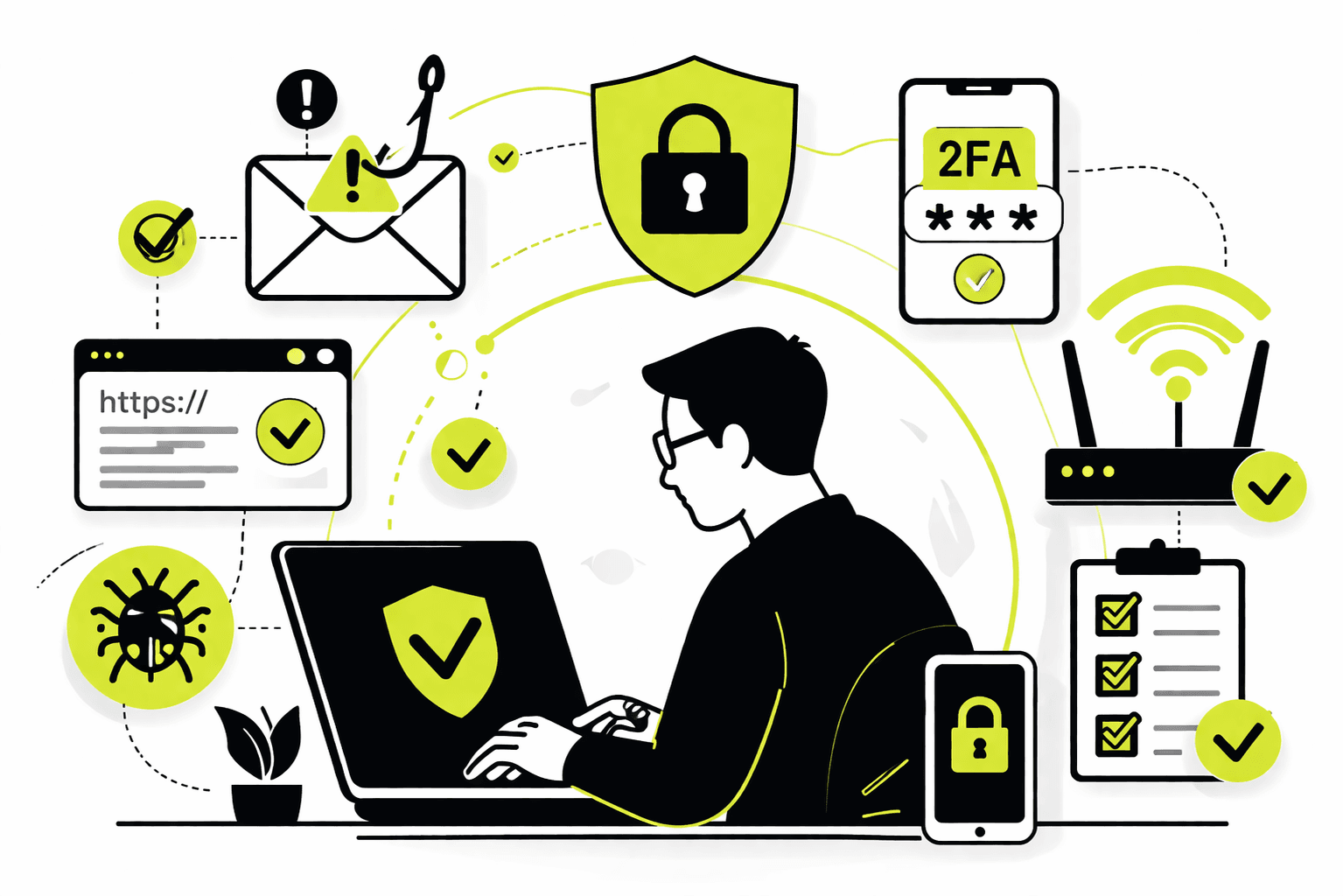
Every day brings new phishing scams, malware strains, and account takeovers. While corporate laptops are often hardened by IT teams, our home devices and accounts usually lack those protections. It’s vital to apply similar basic cyber-hygiene at home. This means keeping software up to date, using strong authentication, and locking down your home network. Below are practical steps to help end users secure their personal accounts, phones, laptops and Wi‑Fi against phishing, malware and hackers.
Guard Against Phishing and Scam Emails
- Stay vigilant. Never click links or open attachments in unexpected emails or texts. Cybercriminals often use convincing-looking messages to trick you into giving up passwords or installing malware. If you receive a suspicious email (even seemingly from a known contact), verify it by calling or messaging the sender through a trusted channel, not by replying to the email itself. The U.S. FTC warns: “Don’t click on a link in an unexpected email or text…Instead, contact the company using a phone number or website you know is real.”.
- Use spam filters and phishing protection. Many email services (Gmail, Outlook, etc.) automatically flag known phishing scams. Keep these protections enabled, and consider installing a browser extension or security software that warns you about fake sites or dangerous downloads.
- Educate yourself. Learn to recognise common phishing red flags: mismatched URLs, poor spelling or grammar, and urgent requests for personal data. Remember that legitimate institutions rarely ask for sensitive information directly via email. Always verify the domain and hover over links to see the real address before clicking.
Keep Devices Malware‑Free and Updated
- Install reputable security software. On Windows or macOS, use a trustworthy antivirus/anti-malware program that performs regular scans. For example, Windows Defender (built into Windows 10/11) or free tools like AVG or Avast can detect most known threats. California’s Attorney General advises: “Antivirus software protects your device from viruses that can destroy your data…you must keep your antivirus software updated to cope with the latest ‘bugs’”. Schedule daily scans and automatic definition updates so you catch infections early.
- Keep your system and apps up to date. Software updates often include security patches for new exploits. Turn on automatic updates for your operating system, web browser, and any other programs (Zoom, Adobe Reader, etc.). Both the FTC and security experts stress updating immediately when patches are available. This closes known vulnerabilities before attackers can exploit them.
- Only install apps from official sources. On mobile phones, use the Apple App Store or Google Play Store. Don’t sideload APKs or install pirated software. Malicious apps often masquerade as legitimate ones on unofficial sites. As one cybersecurity guide notes: “Make sure apps you install on a mobile device come from the Apple App Store…or Google Play for Android devices.” This prevents sneaky spyware or banking trojans from entering your phone.
- Lock and encrypt your devices. Use screen locks (PIN, fingerprint or passcode) so that if your phone or laptop is lost or stolen, an attacker can’t easily access it. Consider enabling full-disk encryption (many OSes offer this by default) so that data remains protected even if someone gets the hardware.
Use Strong Passwords and Two‑Factor Authentication
- Unique, strong passwords: Give each account its own password. Avoid re‑using the same password for multiple sites. Use a long passphrase or a mix of upper and lower case letters, numbers, and symbols. The FTC recommends at least 15 characters or a memorable passphrase. For example, a sentence like “Blue#CloudsJump27!” is stronger than “Password123!”. If this is hard to remember, use a reputable password manager (Bitwarden, 1Password, etc.) to generate and store complex passwords.
- Enable two‑factor authentication (2FA). Always turn on 2FA (also called multi-factor authentication) for any account that supports it – email, social media, banking, etc. With 2FA, logging in requires something you have (like a phone or security key) in addition to something you know (your password). This extra step thwarts attackers who might guess or steal your password. The FTC points out: “Using two-factor authentication adds an extra layer of security…A hacker who steals your password can’t log in…without the second factor.” Authenticator apps (Google Authenticator, Authy) or hardware keys (Yubikey) are more secure than SMS codes.
- Secure recovery options. When you set up accounts, choose security questions that only you can answer, and make them hard to guess. Avoid questions with obvious answers or ones anyone could find online. If possible, treat the answers like extra passwords (e.g. pick a random phrase as an answer). Also ensure your account recovery email or phone is up to date and secure; an attacker shouldn’t be able to take over your recovery method.
- Social media and email accounts: Treat these as critical. Your email is the gateway to all your other accounts (password resets go there), so protect it vigorously. Don’t use your work email for personal logins. If a social or email account ever gets hacked, act fast: update your antivirus and run a scan, then use the service’s recovery process to regain access. Once back in, change to a new strong password, sign out any active sessions, and re-enable 2FA. Be sure to tell friends not to trust any strange messages that may have gone out from your account during the breach.
Secure Your Home Network
Since attackers reach you over the network, lock down your Wi‑Fi and router settings:
- Encrypt the Wi‑Fi. Log into your router’s settings (often via a web browser) and choose WPA3 Personal or WPA2 Personal security mode. Both scramble traffic so outsiders can’t snoop on your data. Do not use outdated protocols like WEP or open (unsecured) Wi‑Fi. The FTC advises: “To encrypt your network, simply update your router settings to either WPA3 Personal or WPA2 Personal… WPA3 is the newer — and best — encryption available…”. If your router is too old to support WPA2/3, consider replacing it.
- Change all default passwords. Routers ship with a known admin username/password (often “admin”/“password”). Change both the Wi‑Fi network password and the router’s admin password. Choose a unique SSID (network name) and a complex admin password. The FTC warns against leaving defaults: “There are two passwords on your router you’ll need to reset… If a hacker managed to log into the admin side…they could change the settings…That would undo any other security steps.” Pick something hard to guess (no personal info) and store it securely.
- Keep firmware up to date. Routers periodically receive software updates to patch security holes. Check the manufacturer’s site or router admin page for updates, and apply them promptly. If your Internet provider supplied the router, ask them how updates are handled. Updating prevents attackers from exploiting known vulnerabilities in older firmware.
- Disable risky features. Turn off “remote management” (remote admin access), WPS (Wi‑Fi Protected Setup), and UPnP (Universal Plug-and-Play) on your router. These convenient features can be exploited by hackers. For example, remote management allows someone on the internet to change your router settings – disable it. Likewise, WPS makes pairing devices easy but is notoriously insecure. Disabling these leaves fewer open doors into your network.
- Use a guest network and segment IoT devices. Most routers let you create a separate “guest” Wi‑Fi with its own password. Give visitors the guest network password instead of your main one. This ensures any malware on a guest’s device cannot jump to your primary network. Similarly, consider isolating Internet-of-Things devices (smart TVs, cameras, thermostats) onto their own network. Security guides recommend having four virtual networks: (1) your main personal devices, (2) a guest Wi‑Fi, (3) IoT/“smart home” devices, and (4) security devices (cameras, alarms, smart locks). Segmenting this way prevents a compromised IoT gadget from infecting your phone or laptop.
- Enable the router firewall. Many home routers include a built-in firewall. Ensure it is turned on (check the settings). A firewall helps block unsolicited traffic from the internet and can contain attacks. The FTC notes: “Turn on your router firewall. A firewall is an additional layer of protection… Most routers come with built-in firewalls, so check your settings to make sure it’s turned on”.
- Use strong DNS and consider VPN. For additional safety, you can use a secure DNS service (like Cloudflare 1.1.1.1 or Quad9) that blocks known malicious sites. When you’re away from home (on public Wi‑Fi), use a VPN to encrypt traffic and hide your browsing from snoopers. Treat unknown networks as hostile: avoid sensitive transactions on them unless secured by a VPN.
General Precautions and What to Do If Hacked
- Back up your data. Regularly back up important files (to an external drive or cloud). If ransomware or malware hits, you can restore your data rather than paying a ransom.
- Lock and manage devices. Use passcodes and fingerprint locks on phones. Enable “Find My Device” or similar so you can remotely wipe lost/stolen devices. Don’t leave unlocked devices unattended.
- Stay informed. Follow security news and alerts. Being aware of new phishing scams (via newsletters or security blogs) makes you less likely to fall for them.
- If an account is compromised: Act quickly. Run your antivirus scanner and remove any malware. Use the service’s recovery process to reset passwords. Then change to a new strong password, sign out all devices, enable 2FA, and review account settings for unauthorized changes. Notify your contacts not to click on any suspicious messages coming from your account. For email or social accounts, the FTC has a detailed recovery guide – follow it step by step.
Checklist of Key Steps
- Keep software updated: Enable auto-update on OS, browser, and apps.
- Use antivirus/anti-malware: Install a reputable scanner and run it daily or weekly.
- Strong passwords & 2FA: Use long unique passwords (consider a password manager) and turn on two-factor authentication on all accounts.
- Verify before you click: Never open unexpected links/attachments; confirm emails and texts by other means.
- Secure router settings: Change default router/admin passwords, use WPA3/WPA2 encryption, and disable remote/WPS.
- Segment your network: Set up separate Wi‑Fi networks for guests and for smart devices.
- Enable router firewall: Check that your home firewall is on and updated.
By following these precautions, you turn your home into a much harder target. No solution is 100% foolproof, but layering these measures greatly reduces the chances of falling victim to phishing scams or malware. Each layer – from strong passwords and 2FA to secured Wi‑Fi – forces attackers to jump through more hoops. In short, think like a defender: update and patch promptly, lock down every entry point, and assume that any unexpected message or open network could be a trap. This mindset, combined with the steps above, will help keep your personal devices, accounts, and network safe.
Sources: Authoritative guides from the FTC, Microsoft, and cybersecurity experts on device updates, phishing avoidance, strong authentication, and home network security. (Embedded images are for illustrative purposes.)