
The Uncomfortable Truth: You Are Your Own IT Department at Home
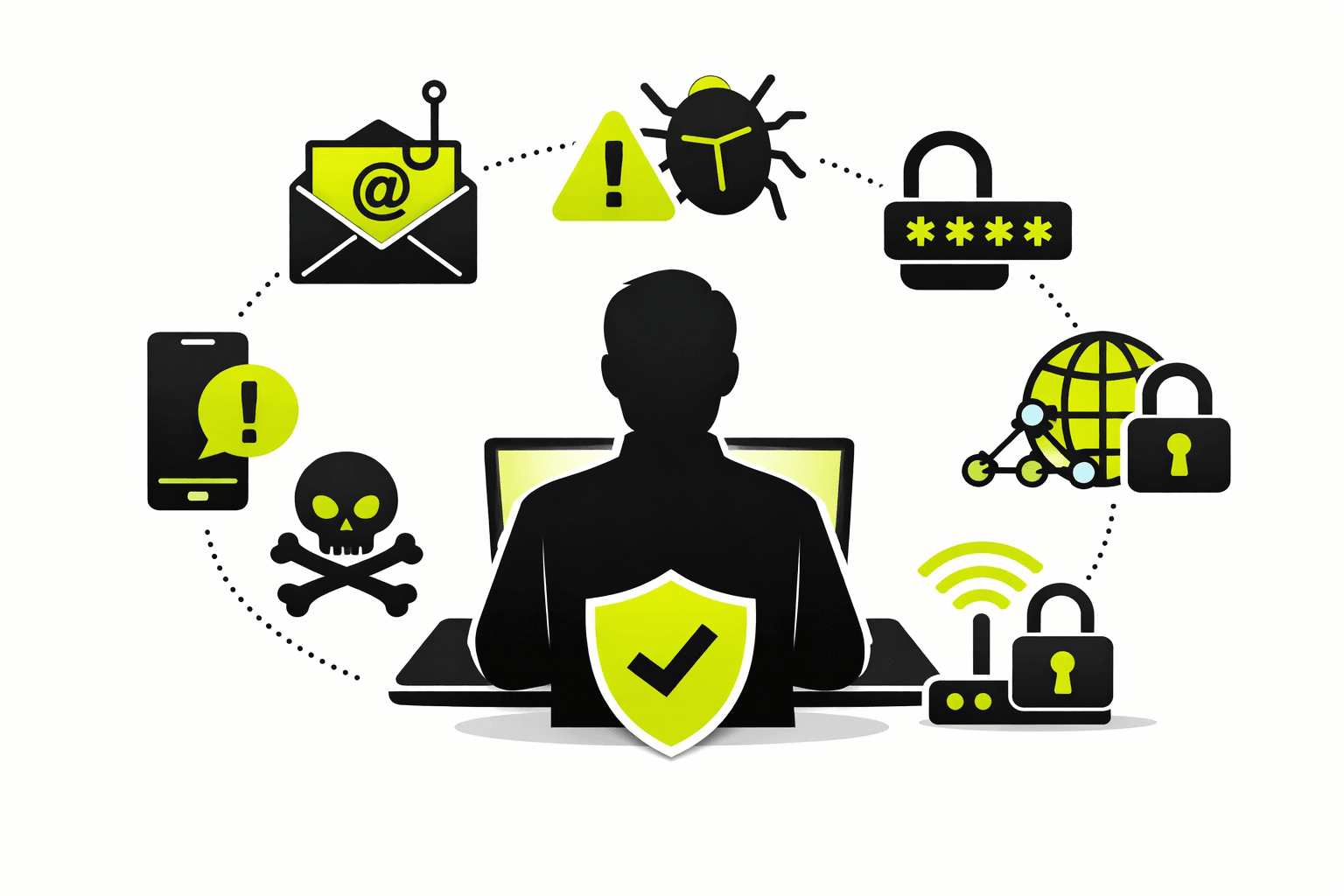
We sleep soundly at work. Why? Because if a phishing email slips through, or malware hits our laptop, there is a blue team (the SOC, the IT admins, the EDR software) waiting to catch it. We have a safety net.
But here is the scary reality most of us ignore: When you are sitting on your couch, scrolling on your personal iPhone, or logging into your personal Gmail on your home Wi-Fi—there is no SOC.
There is no Security Operations Center watching your home router. There is no Endpoint Detection software screaming “ransomware detected” on your kid’s laptop. There is only you.
And the attacker knows this. They know your corporate laptop is a fortress, so they are waiting for you to check your personal email on your vulnerable phone.
So, how do we build a “Personal SOC” for less than $0 (or very cheap)? Let’s solve the three big fears: Phishing, Malware, and Account Hacking. And most importantly, let’s fix the network—the highway the attacker uses to reach you.
The Threat Landscape (The “Big Three”)
Before we fix it, let’s identify what we are fighting:
- Phishing Emails: The attacker pretends to be Netflix, your bank, or a friend. You click the link.
- Malware: You download a “free PDF converter” or a cracked game. It steals your cookies and passwords.
- Account Takeover (Hacked): You reuse passwords. One database leak (LinkedIn, Adobe, etc.) gives the attacker the key to your Instagram, Email, or Amazon.
Part 1: How to Protect the “Unprotected” Devices
You don’t need a $10,000 firewall. You need hygiene. Here is the standard you should hold your personal devices to.
A. The Smartphone (The most dangerous device)
Your phone has your SMS (2FA codes), your emails, and your banking apps. If this is hacked, you are ruined.
- The Golden Rule: Never, ever install apps from outside the official App Store (iOS) or Play Store (Android). Side-loading is how 90% of mobile malware happens.
- The Update Lie: Stop clicking “Remind me tomorrow.” Security patches fix known holes. Do it now.
- The Link Filter: Never click a link in a text message from “FedEx” or “USPS.” Open the browser and type the website manually.
B. The Personal Laptop (Windows/Mac)
- The “Standard User” Trick: On Windows, do not use an “Administrator” account for daily browsing. Create a standard user account. If malware tries to install itself, the OS will ask for an Admin password. That pause saves you.
- The Free Antivirus: Windows Defender (built into Windows 11) is actually world-class now. You do not need Norton or McAfee. Just ensure Defender is ON and updating.
- Backup (The Ransomware Cure): If you get ransomware, you have two options: Pay the hacker (bad) or restore from backup. Use Backblaze ($7/month) or a physical hard drive. If you don’t have a backup, you don’t own your data.
Part 2: The “Un-Hackable” Personal Account Strategy
Corporate accounts have Single Sign-On (SSO) and Conditional Access. You don’t. So you need to build a DIY version.
1. The Password Manager (Non-negotiable)
Stop memorizing passwords. You are bad at it. You are reusing “Spring2024!” everywhere.
- Tool: Bitwarden (Free) or 1Password ($3/mo).
- Action: Every account gets a unique, 16-character random password.
2. 2FA (The Wall)
SMS text codes are better than nothing, but hackers can steal your phone number via “SIM Swapping.”
- The Fix: Use an Authenticator App (Google Authenticator, Microsoft Authenticator, or Aegis) or a hardware key (YubiKey).
- Priority: Turn this on for your Email first. If they have your email, they have all your accounts via “Forgot Password.”
3. The “Social Media” Defense
- Logout of devices: Facebook/Instagram have a “Where you’re logged in” page. Review it monthly.
- Recovery codes: When you set up 2FA, websites give you 10 backup codes. Print them out. Put them in your wallet. If you lose your phone, those codes are the only way back in.
Part 3: The Network (The Attacker’s Front Door)
The most important question: “How to protect the network?”
The attacker cannot touch your phone if they cannot see it on the network. Most home routers are sold with terrible default security. Here is how to “re-set” your network properly (referencing your blog on the unsecured perimeter).
The “New Network” Setup Checklist
Step 1: Find the Router.
Look at the sticker on your Comcast/Verizon/T-Mobile box. Write down the IP address (usually 192.168.1.1).
Step 2: Change the Admin Password.
The default is usually admin/password. Change it to something unique. If you don’t, a hacker can log into your router and redirect all your traffic to a fake bank website.
Step 3: The Guest Network (Crucial).
This is your best weapon.
- Main Network: Only for your laptop and phone.
- Guest Network: For your smart TV, Alexa, smart lightbulbs, and your kids’ friends.
- Why? IoT devices (Smart fridges, cameras) are notoriously easy to hack. If they live on the Guest network, they cannot see your laptop or phone.
Step 4: Turn off WPS.
WPS is the button on the router that lets you connect without a password. It is a massive security hole. Turn it off in the settings.
Step 5: Update the Firmware.
That router is a tiny computer. Hackers exploit old router software. Look for “Firmware Update” in your router settings. Do it now.
The DNS Layer (The Cheap Corporate Trick)
Corporate laptops use a service like Cisco Umbrella to block bad websites before they load. You can do this at home for free.
- Change your DNS to Cloudflare (
1.1.1.2) or OpenDNS (208.67.222.222). - These specific DNS addresses automatically block malware domains and adult content. If you click a phishing link, the DNS server says “Nope, that’s a trap” and stops the page from loading.
The “Incident Response” Plan (When you think you are hacked)
Even with all this, mistakes happen. You clicked the link. What now?
- Disconnect immediately: Pull the ethernet cord. Turn off Wi-Fi. Cut the bridge.
- Scan the device: Run Windows Defender (Offline scan) or Malwarebytes (Free).
- Rotate passwords: From a clean device (like your work laptop or a friend’s phone), change your email password first, then your bank, then social media.
- Check forwarding rules: Hackers often set up Gmail/Outlook rules to delete security emails. Check “Settings -> Filters and Blocked Addresses” for anything you didn’t create.
The Bottom Line
You cannot afford a $100,000 SIEM for your home. But you can afford a password manager, a guest network, and 10 minutes to update your router firmware.
Stop treating your home network like a private club. Treat it like a public park. Lock the gates (Router password), hire a guard (DNS filtering), and don’t leave your wallet on the bench (unique passwords).
For a deeper dive into why the corporate perimeter is dead and how attackers slip through, check out my previous deep dive here: Part 2: The Remote Work Reality – Securing the Unsecured Perimeter.
Stay paranoid. Stay updated. You are the CEO of your own digital life.